
Introduction
ICSharpCode.AvalonEdit is the WPF-based text editor that I've written for SharpDevelop 4.0. It is meant as a replacement for ICSharpCode.TextEditor, but should be:
- Extensible
- Easy to use
- Better at handling large files
Extensible means that I wanted SharpDevelop AddIns to be able to add features to the text editor. For example, an AddIn should be able to allow inserting images into comments - this way you could put stuff like class diagrams right into the source code!
With, Easy to use, I'm referring to the programming API. It should just work™.
For example, this means if you change the document text,
the editor should automatically redraw without having to call Invalidate().
And if you do something wrong, you should get a meaningful exception, not corrupted state and crash later at an unrelated location.
Better at handling large files means that the editor should be able to handle large files (e.g. the mscorlib XML documentation file, 7 MB, 74100 LOC), even when features like folding (code collapsing) are enabled.
Using the Code
The main class of the editor is ICSharpCode.AvalonEdit.TextEditor.
You can use it just similar to a normal WPF TextBox:
<avalonEdit:TextEditor
    xmlns:avalonEdit="http://icsharpcode.net/sharpdevelop/avalonedit"
    Name="textEditor"
    FontFamily="Consolas"
    FontSize="10pt"/>
To enable syntax highlighting, use:
textEditor.SyntaxHighlighting = HighlightingManager.Instance.GetDefinition("C#");
AvalonEdit has syntax highlighting definitions built in for:
ASP.NET, Boo, Coco/R grammars, C++, C#, HTML, Java, JavaScript, Patch files, PHP, TeX, VB, XML
If you need more of AvalonEdit than a simple text box with syntax highlighting, you will first have to learn more about the architecture of AvalonEdit.
Architecture
TODO: overview of the namespaces, insert graph from NDepend As you can see in this dependency graph, AvalonEdit consists of a few sub-namespaces that have cleanly separated jobs. Most of the namespaces have a kind of 'main' class.- ICSharpCode.AvalonEdit.Utils: Various utility classes
- ICSharpCode.AvalonEdit.Document:
TextDocument— text model - ICSharpCode.AvalonEdit.Rendering:
TextView— extensible view onto the document - ICSharpCode.AvalonEdit.Editing:
TextArea— controls text editing (e.g. caret, selection, handles user input) - ICSharpCode.AvalonEdit.Highlighting:
HighlightingManager— highlighting engine - ICSharpCode.AvalonEdit.Highlighting.Xshd:
HighlightingLoader— XML syntax highlighting definition support (.xshd files) - ICSharpCode.AvalonEdit.Folding:
FoldingManager— enables code collapsing - ICSharpCode.AvalonEdit:
TextEditor— the main control that brings it all together
Here is the visual tree of the TextEditor control:
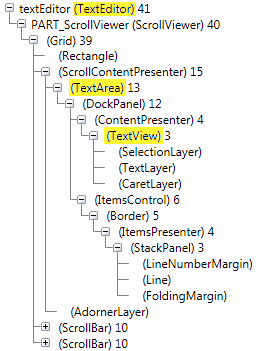
It's important to understand that AvalonEdit is a composite control with the three layers: TextEditor (main control), TextArea (editing), TextView (rendering).
While the main control provides some convenience methods for common tasks, for most advanced features you have to work directly with the inner controls. You can access them using textEditor.TextArea
or textEditor.TextArea.TextView.
Document (The Text Model)
The main class of the model is ICSharpCode.AvalonEdit.Document.TextDocument.
Basically, the document is a StringBuilder with events.
However, the Document namespace also contains several features that are useful to applications working with the text editor.
In the text editor, all three controls (TextEditor, TextArea, TextView) have a Document property pointing to the TextDocument instance.
You can change the Document property to bind the editor to another document; but please only do so on the outermost control (usually TextEditor), it will inform its child controls about that change.
Changing the document only on a child control would leave the outer controls confused.
Simplified definition of TextDocument:
public sealed class TextDocument : ITextSource
{
    public event EventHandler<DocumentChangeEventArgs> Changing;
    public event EventHandler<DocumentChangeEventArgs> Changed;
    public event EventHandler TextChanged;

    public IList<DocumentLine> Lines { get; }
    public DocumentLine GetLineByNumber(int number);
    public DocumentLine GetLineByOffset(int offset);
    public TextLocation GetLocation(int offset);
    public int GetOffset(int line, int column);

    public char GetCharAt(int offset);
    public string GetText(int offset, int length);

    public void Insert(int offset, string text);
    public void Remove(int offset, int length);
    public void Replace(int offset, int length, string text);

    public string Text { get; set; }
    public int LineCount { get; }
    public int TextLength { get; }
    public UndoStack UndoStack { get; }
}
Offsets and Lines
In AvalonEdit, an index into the document is called an offset.Offsets usually represent the position between two characters.
The first offset at the start of the document is 0; the offset after the first char in the document is 1.
The last valid offset is document.TextLength, representing the end of the document.
This is exactly the same as the 'index' parameter used by methods in the .NET String or StringBuilder classes.
Offsets are easy to use, but sometimes you need Line / Column pairs instead.
AvalonEdit defines a struct called TextLocation for those.
The document provides the methods GetLocation and GetOffset to convert between offsets and TextLocations.
Those are convenience methods built on top of the DocumentLine class.
The TextDocument.Lines collection contains one DocumentLine instance for every line in the document.
This collection is read-only to user code and is automatically updated to reflect the current document content.
Rendering
In the whole 'Document' section, there was no mention of extensibility. The text rendering infrastructure now has to compensate for that by being completely extensible.The ICSharpCode.AvalonEdit.Rendering.TextView class is the heart of AvalonEdit.
It takes care of getting the document onto the screen.
To do this in an extensible way, the TextView uses its own kind of model: the VisualLine.
Visual lines are created only for the visible part of the document.
The rendering process looks like this:
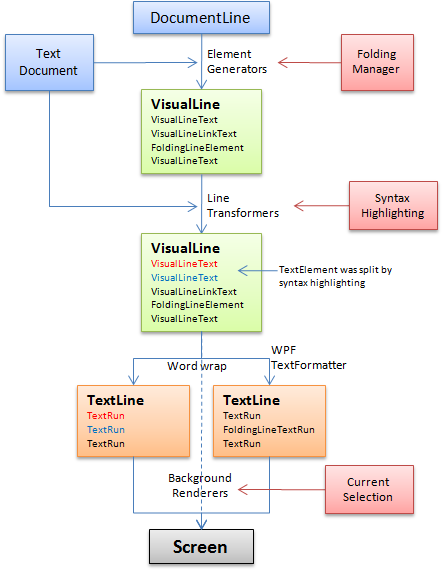
The last step in the pipeline is the conversion to one or more System.Windows.Media.TextFormatting.TextLine instances. WPF then takes care of the actual text rendering.
The "element generators", "line transformers" and "background renderers" are the extension points; it is possible to add custom implementations of
them to the TextView to implement additional features in the editor.
The extensibility features of the rendering namespace are discussed in detail in the article "AvalonEdit Rendering". (to be published soon)
Editing
TheTextArea class is handling user input and executing the appropriate actions.
Both the caret and the selection are controlled by the TextArea.
You can customize the text area by modifying the TextArea.DefaultInputHandler by adding new or replacing existing
WPF input bindings in it. You can also set TextArea.ActiveInputHandler to something different than the default
to switch the text area into another mode. You could use this to implement an "incremental search" feature, or even a VI emulator.
The text area has the useful LeftMargins property - use it to add controls to the left of the text view that look like
they're inside the scroll viewer, but don't actually scroll. The AbstractMargin base class contains some useful code
to detect when the margin is attached/detaching from a text view; or when the active document changes. However, you're not forced to use it;
any UIElement can be used as margin.
Folding
Folding (code collapsing) is implemented as an extension to the editor. It could have been implemented in a separate assembly without having to modify the AvalonEdit code. AVisualLineElementGenerator takes care of the collapsed sections in the text document; and a custom margin draws the plus and minus
buttons.
You could use the relevant classes separately; but, to make it a bit easier to use, the static FoldingManager.Install
method will create and register the necessary parts automatically.
All that's left for you is to regularly call FoldingManager.UpdateFoldings with the list of foldings you want to provide.
You could calculate that list yourself, or you could use a built-in folding strategy to do it for you.
Here is the full code required to enable folding:
foldingManager = FoldingManager.Install(textEditor.TextArea);
foldingStrategy = new XmlFoldingStrategy();
foldingStrategy.UpdateFoldings(foldingManager, textEditor.Document);
If you want the folding markers to update when the text is changed, you have to repeat the foldingStrategy.UpdateFoldings call regularly.
Currently, only the XmlFoldingStrategy is built into AvalonEdit.
The sample application to this article also contains the BraceFoldingStrategy that folds using { and }.
However, it is a very simple implementation and does not handle { and } inside strings or comments correctly.
Syntax highlighting
TODO: write this sectionPoints of Interest
Did you learn anything interesting/fun/annoying while writing the code? Did you do anything particularly clever or wild or zany?
History
Keep a running update of any changes or improvements you've made here.
Note: although my sample code is provided under the MIT license, ICSharpCode.AvalonEdit itself is provided under the terms of the GNU LGPL.